The Setup
Multiple Files, Same Format
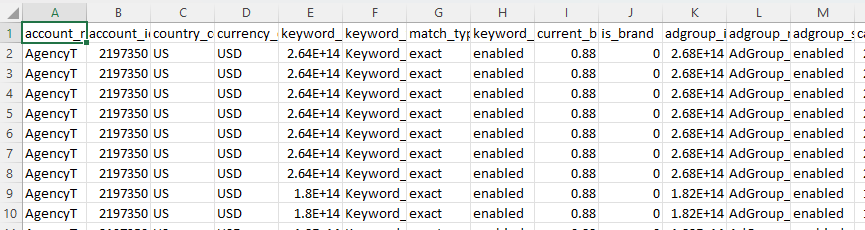
Excel files are stored in a folder, each following the same structure. The tool needs to:
- List all keywords from every file
- Extract the Total Commitment value from the second sheet of each file

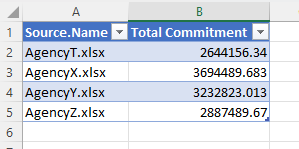
A VBA & Power Query tool that consolidates data from multiple Excel files into one sheet — cutting hours of manual extraction down to a single click.
In the world of data, efficiency and accuracy are paramount. Many professionals spend hours manually copying data from multiple Excel files into a single sheet for analysis, reporting, or generating presentations.
When you have dozens of Excel files in the same format sitting in a folder, and you need to extract specific keywords and values from each one — the manual process is tedious, error-prone, and doesn't scale.
This tool solves that problem. Point it at a folder of Excel files, click refresh, and get all your data consolidated into one sheet — ready for analysis, visualization, or export.
Excel files are stored in a folder, each following the same structure. The tool needs to:
Open the consolidation tool and you'll see the main page — clean and straightforward.

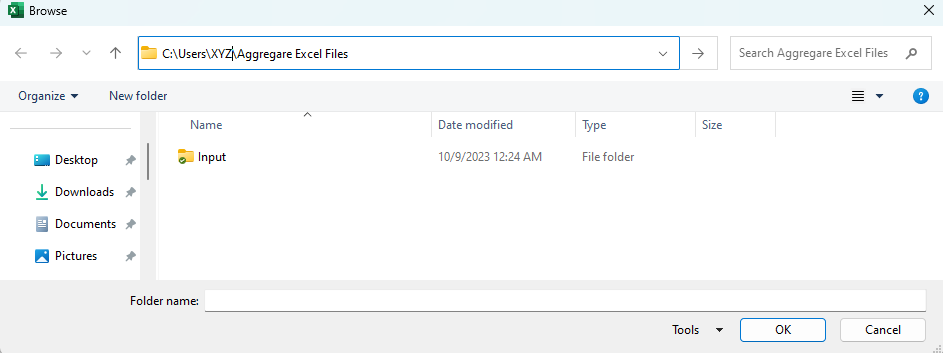
Press the Plus button to browse and select the folder containing your Excel files, then confirm your selection.

Click the Refresh button and Power Query automatically loads and consolidates all the data.
Automates a process that could otherwise take hours of manual copying and pasting across dozens of files.
Eliminates human errors associated with manual data handling — no more missed rows or copy-paste mistakes.
Designed for users of all technical levels — no coding knowledge required. Just select a folder and click refresh.
Central to this tool's efficiency is its integration with Power Query, Microsoft's powerful data connection technology built into Excel.
Power Query connects to files across a folder, pulling data with precision from diverse sources — databases, online services, or structured datasets.
Filter, sort, group, pivot, and transform data without complex scripting. Transformations are saved as repeatable steps for consistency.
Data loads directly into Excel worksheets, pivot tables, or data models — making subsequent analysis and visualization effortless.
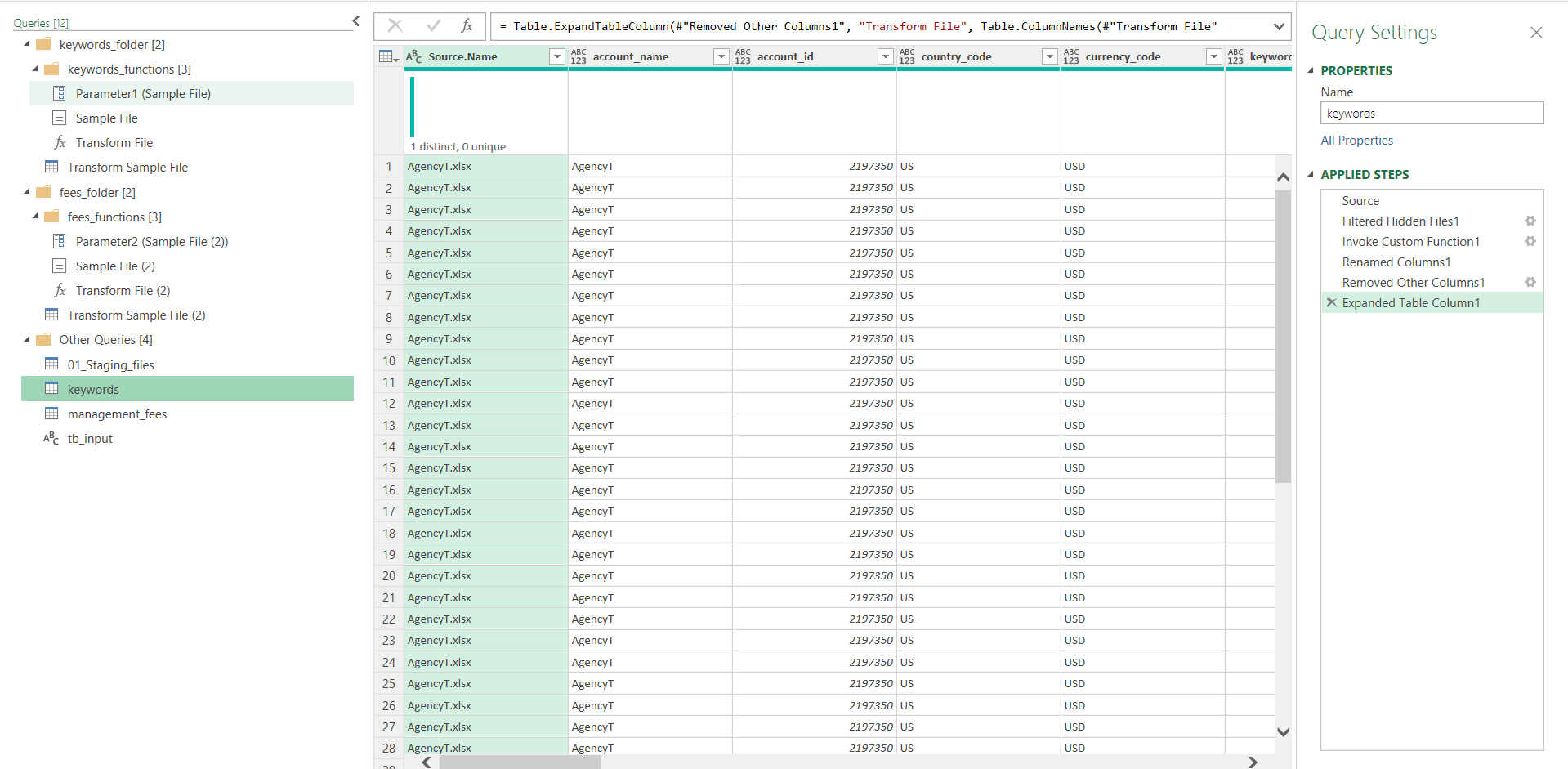
When you press Refresh, Power Query automatically scans the selected folder and lists all Excel files in a table.
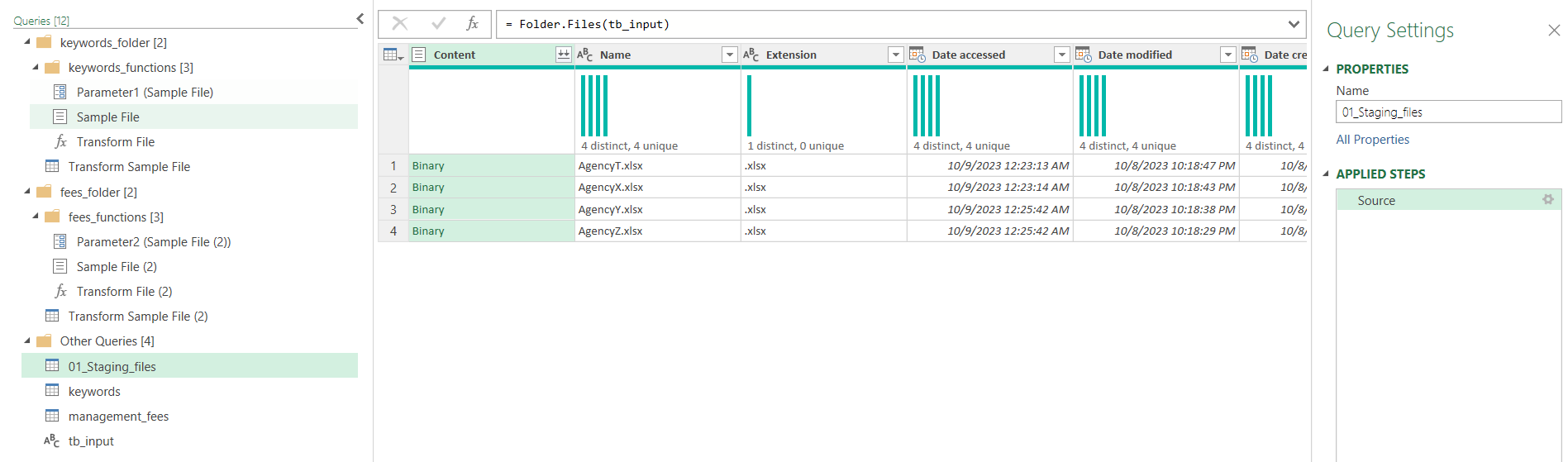
Each file goes through a series of transformations — removing unwanted columns to reduce loading time, and applying any custom requirements specified by the user.
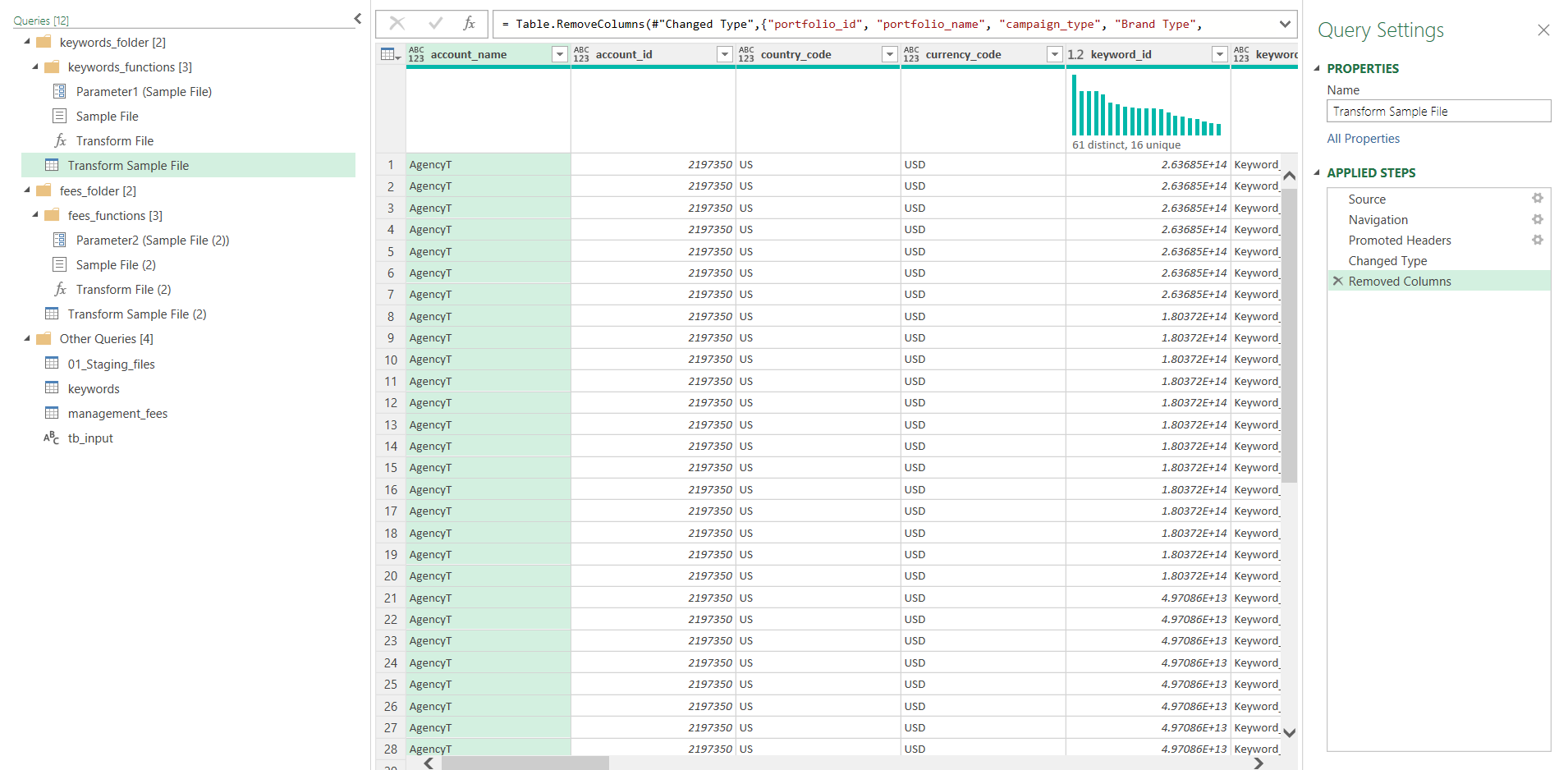
Finally, Power Query merges all transformed data into a single table that can be loaded as an Excel Table or into a data model as a connection.
The tool uses a simple VBA macro for the folder selection dialog, making it easy for any user to browse and pick the target folder without manually typing file paths.
Function SelectFolder()
Dim sFolder As String
    ' Open the select folder prompt
    With Application.FileDialog(msoFileDialogFolderPicker)
        If .Show = -1 Then ' if OK is pressed
            sFolder = .SelectedItems(1)
        End If
    End With

    If sFolder <> "" Then ' if a file was chosen
        FilesSht.Range("cel_InputFile").Value = sFolder
    Else
        MsgBox "No File Selected!"
    End If
End FunctionDownload the Excel Data Consolidation Tool for free. Just point it at a folder of Excel files and click refresh.
Download Free Tool (.zip)